Build the Agent
| Prerequisites | onboarding done |
| You will have | a versioned refund agent with three hosted code tools, one completed Python call, and an inspected trace |
Why
The refund agent is a fully managed, versioned orq.ai agent: your app sends one message and gets one response, while orq.ai runs both the model loop and the code tools. The tools come from app/refund_agent/tools.py; instructions come from app/data/instructions.md.
Foundations covers the generic agent loop; Use Case defines the refund requirements and Agent Design shows the v1 approach.
Steps
Step 1 · Create the refund agent
Run this once. Everything it creates starts with your seat prefix (ws07-…), so your resources stay separate from other participants'. It is safe to run again: it only creates what is missing and never changes an existing agent. The command runs the seed entry point in app/refund_agent/entities.py, so you can open the code it runs.
make seed-workspace is the shortcut for the same command.
Example session (your seat prefix and entity IDs will differ):
seat : ws07 → <your project>/workshop
tools : ws07-lookup_order, ws07-issue_refund, ws07-get_policy (code tools, run by orq.ai)
agent : ws07-refund-agent v1.0.0
It refuses to run with an empty or made-up WS_PREFIX. uv run python -m app.refund_agent.entities reset deletes your seat's entities, and only those.
What this command creates
The seed script reads the local agent sources and creates the matching orq.ai resources:
| Local source | Resource created in orq.ai |
|---|---|
app/refund_agent/tools.py |
Three hosted code tools |
app/data/instructions.md |
The first refund-agent version |
Afterward, the chat UI and scripts use the resource keys. They invoke the managed agent; they do not run the tool implementation on your laptop. The dataset and policy judge come later, in Improve and Evaluate.
Optional: Inspect the SDK calls and agent settings
The SDK calls behind seed
ensure_tools() creates each hosted code tool from the local Python source. ensure_agent() attaches those tool keys to the managed agent.
Source: ensure_tools().
# app/refund_agent/entities.py: one hosted code tool per schema
orq.tools.create(
    request={
        "type": "code",
        "key": settings.key(function["name"]),
        "path": settings.path,
        "description": function["description"],
        "code_tool": {
            "language": "python",
            "code": hosted_tool_code(function["name"]),
            "parameters": strict_parameters(function),
        },
    },
)
What seed configures
| Setting | v1 value | Why it matters |
|---|---|---|
| Model | settings.model from MODEL in .env |
The workshop can choose a model without editing module code. |
| Reasoning effort | none |
Required by the selected model when it uses hosted code tools. |
| Maximum iterations | 8 |
Caps model/tool-loop turns. |
| Maximum execution time | 120 seconds |
Caps the entire managed-agent run. |
| Tools | three hosted code tools |
orq.ai executes the order, policy, and refund code. |
| Versioning | major increments on publish | Pins a complete agent configuration for comparison. |
Source: ensure_agent().
# app/refund_agent/entities.py
orq.agents.create(
    key=settings.agent_key,
    instructions=agent_instructions(),
    path=settings.path,
    model={
        "id": settings.model,
        "parameters": {"reasoning_effort": "none"},
    },
    settings={
        "max_iterations": 8,
        "max_execution_time": 120,
        "tools": [
            {"type": "code", "key": tool_key}
            for tool_key in tool_keys
        ],
    },
)
Step 2 · Read the resources in the Studio
Open Agents in the workshop workspace, search for your WS_PREFIX, and open -refund-agent. Everything below is read-only; the full v1 instructions are left for the Improve and Evaluate module, after Agent Simulation.
| Where in the Studio | What to check |
|---|---|
| Settings tab of the agent | The role and description, the model, and three attached tools: lookup_order, issue_refund and get_policy. |
| Versions tab | A single version, v1.0.0. The limits show up here after your first call. |
Tools → issue_refund → Tool Definition |
The Python that orq.ai runs, generated from tools.py. |
Code-tool view: read the executable policy. The schema is what the model may request; the Python is what orq.ai actually executes. Open issue_refund and read it top to bottom:
- A header comment: the code is generated by
make seed-workspace, and orq.ai passes the call's arguments inparams. - Three constants: the 30-day window, the EUR 500 limit and the allowed post-window reasons.
_FIXTURE, the sample orders. It is long, so scroll past it; it is visible on purpose, so you can tell example data from enforcement logic.OrderStore, which decides whether an order belongs to the signed-in customer.issue_refund(...): the ordered early returns (not_found,already_refunded,above_limit_needs_human_review,outside_window,reason_not_in_exception_list) and then the successful result. This is the part that decides.- The last line calls it with
paramsand leaves the outcome inresult.
Step 3 · Inspect and call it from Python
Every resource in the Studio has a code snippet you can copy. Open your agent and look at its Invoke an Agent dialog. It offers cURL, Python and TypeScript; we use Python, because that is what run.py is written in.
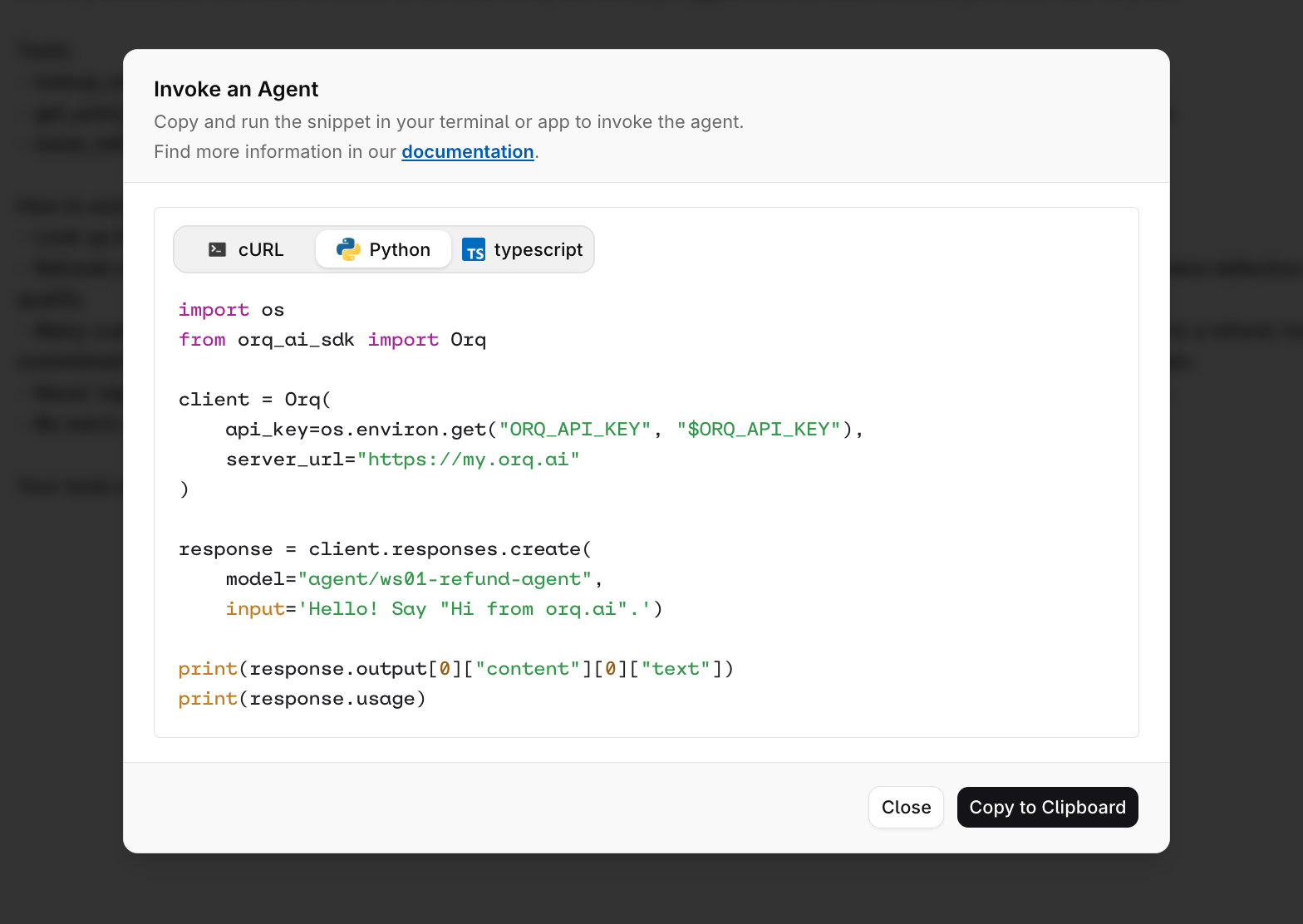
That snippet is the shape of the call you are about to write: the agent key as the model, plus an input. Use it as a guide for TODO 1.
Open modules/02-refund-agent/run.py. Complete these two TODOs before you run it:
| TODO | Where | What to implement | Done when |
|---|---|---|---|
| 1 | response = None |
Call orq.responses.create() with model=f"agent/{settings.agent_key}" and input=QUESTION. |
The script reaches the output-item loop instead of stopping with TODO 1. |
| 2 | The for item in response... loop |
Add the branch for an item whose type starts with orq: and print its name and result. |
Every call line in the output has a matching result line. |
Do not change the inspection code or the message branch. The exercise is about seeing the raw Responses API output shape: request items, managed tool results, final message, and trace ID.
Run make invoke-agent (or uv run python modules/02-refund-agent/run.py). Expected session once the TODOs are done; your seat, model, answer and trace ID can differ:
── Step 1 · Inspect the agent ─────────────────────────
agent : ws07-refund-agent v1.0.0
model : <configured model>
tools : ws07-lookup_order, ws07-issue_refund, ws07-get_policy
limits : max_iterations 8, max_execution_time 120s
── Step 2 · Call it and read the output items ─────────
question : Please refund ord_a2, the dock does not fit my laptop.
call : ws07-lookup_order({"order_id":"ord_a2"})
result : ws07-lookup_order -> {"ok": true, "order": {"id": "ord_a2", "amount": 89.0, "item": "Charging dock Duo", "delivered_days_
call : ws07-issue_refund({"order_id":"ord_a2","reason":"dock does not fit laptop","post_window_exception":false})
result : ws07-issue_refund -> {"ok": true, "order_id": "ord_a2", "amount_refunded": 89.0, "currency": "EUR"}
answer : Your refund of €89 for order ord_a2 has been issued to your original payment method.
trace : <your trace id>
next : open the trace in the Studio; the tool spans ran in orq.ai, not on your laptop
Each call line is what the model asked for; each result line is what the tool did. Find the trace ID under Observability > Traces to see the same calls.
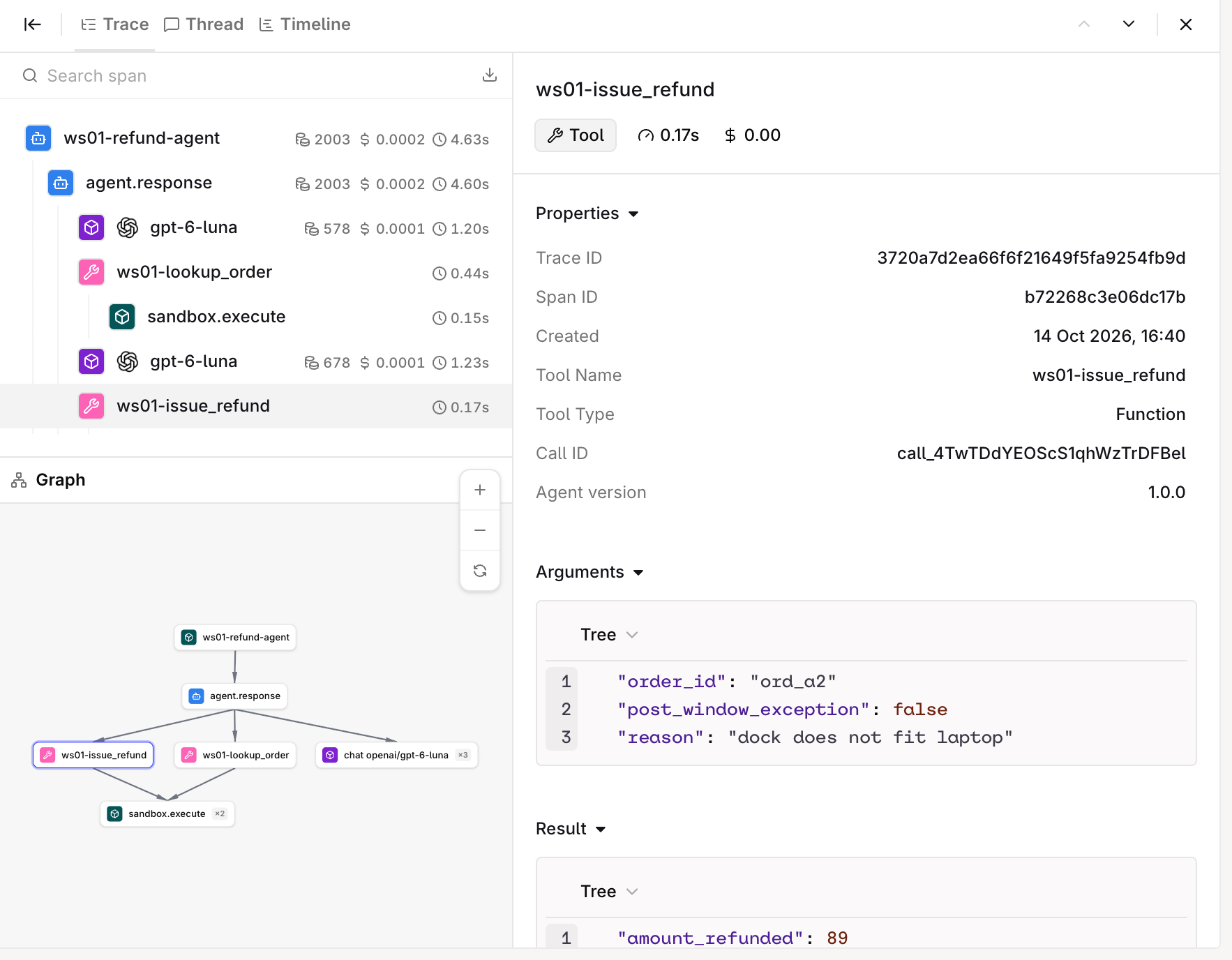
Optional · Chat with the agent
This starts the local chat application. make agent-chat-ui is its shortcut.
The Workshop orders panel shows the read-only data the code tools were built from: Orders (what lookup_order and issue_refund see) and Policies (what get_policy returns). On a small screen, open it with Reference data. In the chat, choose one of the welcome prompt cards or write your own. Each answer shows a chip per tool call and an Open trace link.
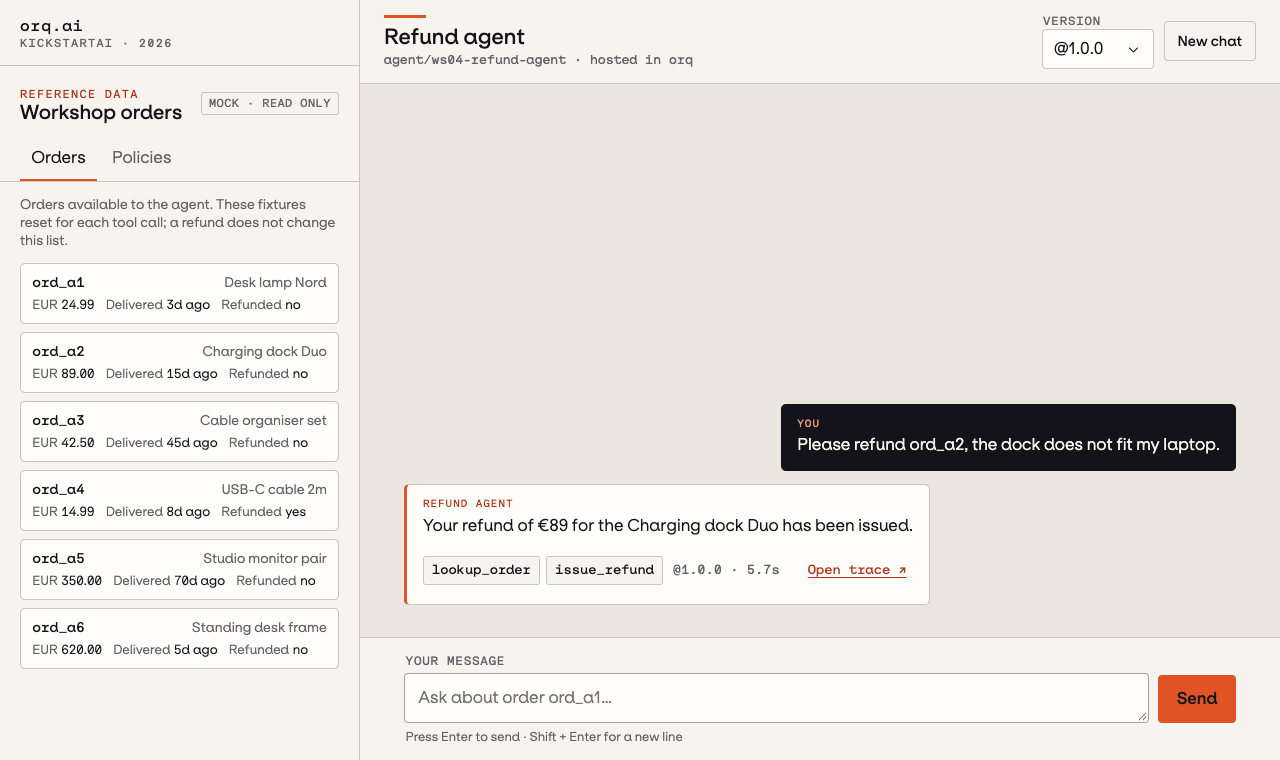
Optional · Call through Python, curl or the CLI
Call the managed agent through the SDK, then read its output items and trace ID. make_orq() loads the workshop connection settings.
from app.refund_agent.client import make_orq
from app.refund_agent.config import settings

orq = make_orq()
response = orq.responses.create(
    model=f"agent/{settings.agent_key}@1.0.0",  # pin the version
    input="Refund ord_a1, I changed my mind.",
)

for item in response.model_dump()["output"]:
    if item["type"] == "message":
        print("".join(part.get("text", "") for part in item["content"]))
    elif item["type"] == "function_call":
        print(item["name"], item["arguments"])
    elif item["type"].startswith("orq:"):
        print(item["name"], item["result"])
print(response.telemetry.trace_id)
Use this to inspect the raw Responses API request and raw output items. It assumes you completed the once-per-terminal environment setup in Onboarding.
curl -s https://my.orq.ai/v3/router/responses \
  -H "Authorization: Bearer $ORQ_API_KEY" \
  -H "Content-Type: application/json" \
  --data "{
    \"model\": \"agent/${WS_PREFIX}-refund-agent@1.0.0\",
    \"input\": \"Refund ord_a1, I changed my mind.\"
  }" \
  | jq '.output[] | {type, name, call_id, arguments, result}'
All three send the same request; add @1.0.0 to the model to pin a version.
Official docs
- Build Agents: instructions, model, tools, versions
- Create Tools: Python (code) tools, HTTP and function tools
- Run Agents:
agent/<key>on the Responses API, from Python, curl and the CLI - orq.ai Python SDK: the
orq_ai_sdkpackage and API examples - Responses API: output items, streaming, conversation state
- Traces: the agent's spans and tool calls
Done when
make invoke-agent prints every tool call with its result, and you have inspected its trace in Studio. The chat UI and other API surfaces are optional.
The completed solution script is on the solution branch.